 Process Explorer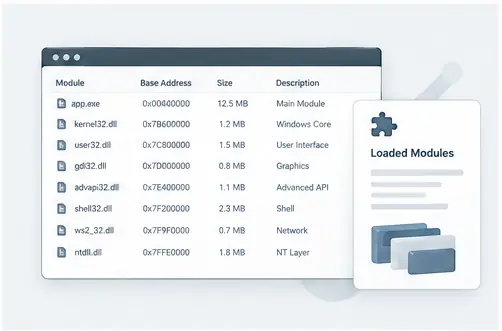
What a loaded module tells you
A running process is more than its main executable. It can load DLLs and other memory-mapped components that provide graphics, networking, runtime services and application features. A module view adds useful context when the process name alone does not explain what the program is doing.
Compare names and locations
When reviewing a module, look at its name and path together. Familiar system components commonly live in standard Windows locations, while application components may be stored beside the application itself. An unexpected location is a reason to investigate further, not a conclusion by itself.
DLL troubleshooting
Module information is valuable when applications report version conflicts, fail during startup or behave differently after an update. Comparing loaded components can help you identify whether the process is using an unexpected library or a different version from the one you expected.
Keep the investigation focused
A normal Windows process can load many modules. Avoid treating a long list as suspicious on its own. Instead, use the process tree, file path, publisher or other available context to decide which module deserves attention.
Use module information as supporting evidence
Loaded modules can help explain what a process depends on at runtime. They are particularly useful when you are investigating DLL-version problems, compatibility issues or unexpected components. Treat the module list as supporting evidence: compare names, paths and surrounding process context instead of assuming that an unfamiliar filename is automatically unsafe.
Practical checklist
Select the process, switch to the module view, note the module name and path, compare related processes, and investigate version or path differences when the behavior you are troubleshooting points in that direction.