 Process Explorer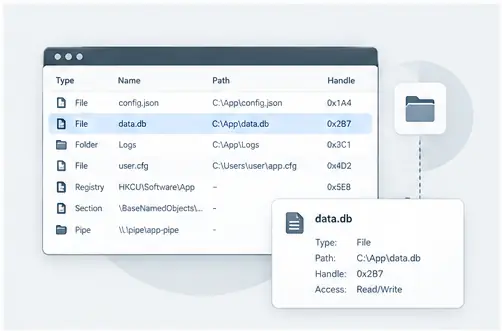
Why files become “in use”
One of the most practical reasons to inspect handles is a file that Windows says is currently being used. A process may have an open handle to a file or directory even when its main window is no longer visible. Finding the process that owns the handle can explain why a rename, delete or replacement operation is blocked.
Search for the resource
Start with the exact file or folder name when possible. Process Explorer can search process-related handles and show which process has the relevant object open. The result gives you a concrete process to investigate instead of guessing which background application is responsible.
Inspect before taking action
Once you identify the process, inspect its properties and context. A system service, editor, backup agent or updater may have a legitimate reason to keep a resource open. Treat the handle as evidence of activity, not automatically as a reason to terminate a process.
Use the result as a troubleshooting clue
After the process is understood, you can decide whether closing the associated application, stopping a service or changing the workflow will release the file. For support teams, the handle search can turn a vague “file is locked” complaint into a specific, testable finding.
Use handles to explain resource locks
A locked file is often easier to understand once you know which process has an open handle to it. Start with the exact file or directory involved, search for the related handle, and then inspect the owning process. This turns a vague Windows message into a concrete relationship between a resource and a process. Remember that a handle explains ownership of an open resource; it does not by itself explain why the application is using that resource.
Practical checklist
Confirm the exact path, search for the resource, identify the process, inspect its parent and children, and verify whether the application is expected to keep the resource open. Close applications normally when possible before forcing process-level changes.